
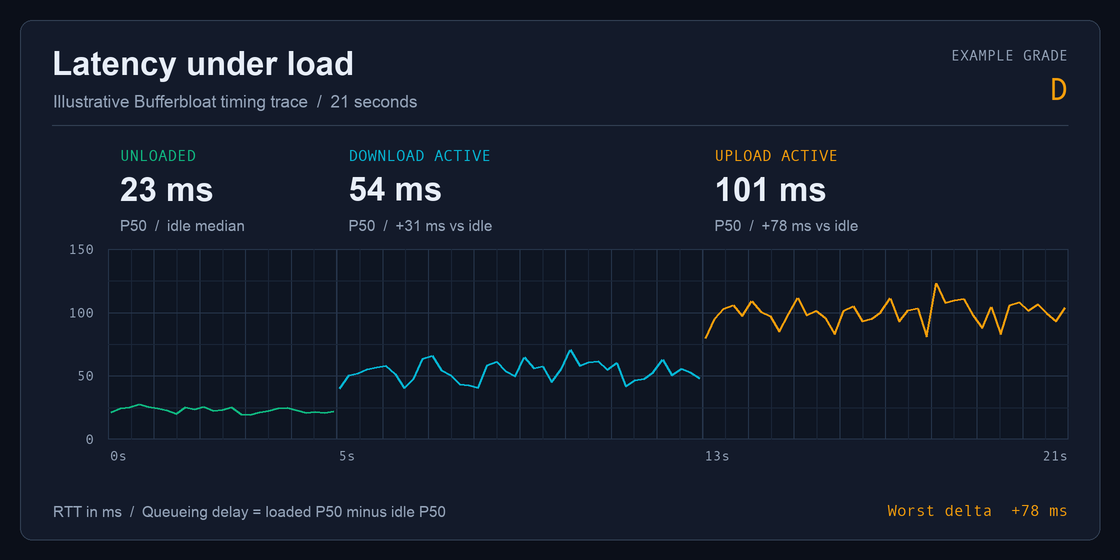
Spot the queue that holds up your connection
A laptop backup can fill a shared connection while a game sends small updates. If the router or modem allows a deep queue, those updates wait behind bulk traffic even when the link reports its usual upload speed. A bufferbloat test isolates that added waiting time and helps explain why a fast speed test can coexist with a call that becomes hard to follow whenever another device uploads.
The load tester starts with approximately five seconds of unloaded RTT sampling, followed by separate download and upload phases lasting up to eight seconds each. Each phase ends when its single stream finishes or reaches the time limit. Connections are paced up to 125 Mbps. The server protects its bandwidth with caps of 60 MB downloaded and 30 MB uploaded per run; this browser requests at most 50 MB down and sends at most 26 MB up. That budget helps test queue management on home and office routers without wasting gigabytes. It also limits the load on fast connections: a transfer may finish before the time limit, and a phase with less than one second of load or too few RTT samples cannot earn a grade. Some browsers use a smaller upload and may not produce a grade. Compare throughput with your line speed. Latency probes continue during the traffic, preferably through the WebRTC UDP DataChannel. HTTPS ping timings serve as a fallback if the UDP negotiation fails and the node supports both the stream and ping endpoints.
Turn the three phases into a diagnosis
Write down the unloaded median, then the download-active and upload-active medians. Subtract the unloaded figure from each loaded figure and floor each difference at zero. If those medians are 19 ms, 32 ms, and 97 ms, download added 13 ms and upload added 78 ms. The higher increase sets the overall grade, so the example scores D. An unloaded RTT of 80 ms and a loaded RTT of 84 ms can score A+ while still being a long route. Look at the absolute numbers for responsiveness and the grade for load sensitivity.
Throughput is a second clue. Mbps is the observed transfer bytes multiplied by eight and divided by the time in seconds and by one million. Download counts streamed bytes and upload estimates use the transfers the node successfully acknowledges. Traffic may plateau below the plan rate because the browser, chosen route, or server limits the run. A grade requires at least three RTT observations in each phase and transfer activity near the beginning and end of each load phase, with at least one second of load. For upload, the browser uses the request interval and the server-acknowledged byte count; it cannot timestamp every byte received by the server. Compare measured throughput with a reliable reference before using the grade to judge a faster access link. Favor a nearby node and check that the active phases actually carried substantial traffic before judging your access line.
Why upload often deserves the first look
Many cable and older broadband plans have less upstream capacity than downstream capacity. A large camera archive can fill that smaller link even when the household's download looks normal. Upload queues can also delay the acknowledgments that help download traffic advance. If your chart lifts mainly during upload, pause cloud backup on one device and try the same scenario again. Compare it with a run during an active backup. A larger upload tier or queue management may help.
A high download delta takes a different comparison. On Wi-Fi, a busy client may monopolize airtime locally before the line itself becomes the bottleneck. Repeat on Ethernet before tuning the WAN settings. If both directions inflate over a direct wired connection after a few seconds of traffic, assess the router's queue management and capacity. If only a distant node shows inflation at low throughput, the chosen test route may be limiting the transfer.
Set up smart queue management on a router you control
Look for SQM settings or active queue management using CAKE or FQ-CoDel. Pacing slightly below the bottleneck lets the router manage waiting packets. Measure stable wired throughput first, then try shaping each direction to roughly 90% of reliably sustained throughput as a starting point. Keep the original settings so you can revert. Apply one adjustment and rerun against the same node at roughly the same time. IETF active queue management recommendations and FQ-CoDel specification
Work upward if latency remains controlled with acceptable speed. Work downward if the queue still inflates at a repeatable point. The right rate can shift on fixed wireless or other connections with variable capacity. Some router processors cannot shape at full gigabit rates. Confirm CPU limits, WAN-interface selection and any interaction with hardware acceleration before interpreting the result. A grade improvement from D to B at a modest throughput cost may be a practical gain if updates and video meetings become consistently usable.
Compare results under a workload that matters
Ask someone to make a call while a normal backup or update runs, after the active tester itself has stopped. Observe whether its audio delay improves with your new settings. Run a separate packet loss check when idle to see whether missing replies remain present after load has stopped. If a long stability session shows disconnects under light traffic, queue management may only address part of the issue. For uneven timing after the queue settles, use the Jitter Test. To time short bursts that come and go between uploads, use the Ping Spike Test.
One graded run gives you an actionable direction. Before comparing routers or plans, reproduce the improvement across several wired runs with the same region and transport. Save both the throughput and RTT values so a sharper grade cannot hide a load that failed to stress the line. The packet loss repair guide covers physical-link and provider checks when loaded latency is only one part of the pattern.